Copilot Section
The Copilot section provides a dedicated interface for generating content for a specific field. Unlike the Panel view button which targets multiple fields at once, the section focuses on a single field with additional features: persistent prompts saved between sessions, immutable prompts for locked workflows, and automatic file context on file pages.
files: auto to include the current image or PDF as context, for alt text, captions, or descriptions.Basic Setup
Add a Copilot section to any blueprint by specifying the target field:
sections:
  content:
    type: fields
    fields:
      blocks:
        label: Content
        type: blocks

  copilot:
    type: copilot
    field: blocks
The Panel will display a collapsible Copilot interface below your fields:
Copilot ×
Prompt, Context
Click on the arrow to expand the accordion and enter your prompt. While a generation runs, the Generate button reports progress and a Stop button appears next to it:
Copilot ×
Prompt, Context
Section Features
Prompt Storage
By default, prompts are saved to local storage and remembered between sessions. The storage is keyed by the Panel view and the target field, so the same section keeps its prompt per page – and two sections writing to the same field on the same page share one entry. Turn it off with the storage property below.
Reset Prompt
If you've modified a predefined prompt, click the Reset button (circular arrow icon) to restore the original.
Undo Generation
After generating content, an Undo button appears to revert to the previous content.
Dynamic Prompts With KQL
A Kirby query in userPrompt or systemPrompt lets content editors define their own prompt in a dedicated field:
sections:
  copilot:
    type: copilot
    field: blocks
    userPrompt: "{{ page.customPrompt.value }}"
Configuration Reference
Sections take every property of the View Button & Field Configuration page, plus the following:
field String
Required. Specifies which field to generate content for. This should be the name of a field defined in the same blueprint.
sections:
  copilot:
    type: copilot
    field: blocks
editable Boolean
Control whether users can edit the prompt. Setting it to false is useful if a specific userPrompt should always be used without modifications.
Default: true
sections:
  copilot:
    type: copilot
    field: content
    userPrompt: Write a technical guide about "{title}". Include an introduction, step-by-step instructions, and a summary.
    editable: false
Copilot ×
Context
files Boolean | String
This property enables file attachments for providing context to the AI model.
Default: true
Options: true, false, "auto"
To disable file attachments and prevent users from adding files, set the files property to false:
sections:
  copilot:
    type: copilot
    field: blocks
    files: false
Copilot ×
Prompt
On a Kirby file page, setting files: auto pre-selects the current file as context for the user prompt. This is useful for generating metadata like alternative text based on the image that has already been uploaded to the Panel:
columns:
  - width: 2/3
    sections:
      content:
        type: fields
        fields:
          alt:
            label: Alternative Text
            type: text

  - width: 1/3
    sections:
      copilot:
        type: copilot
        field: alt
        # Use the uploaded file as context
        files: auto
        # Optional: Provide a predefined user prompt
        userPrompt: Describe this image for alternative text. Include key features, colors, and context. Max 125 characters.
        # Optional: Disable the editing of the user prompt
        editable: false
The section above will use the current file of a Kirby file model as context for the user prompt:
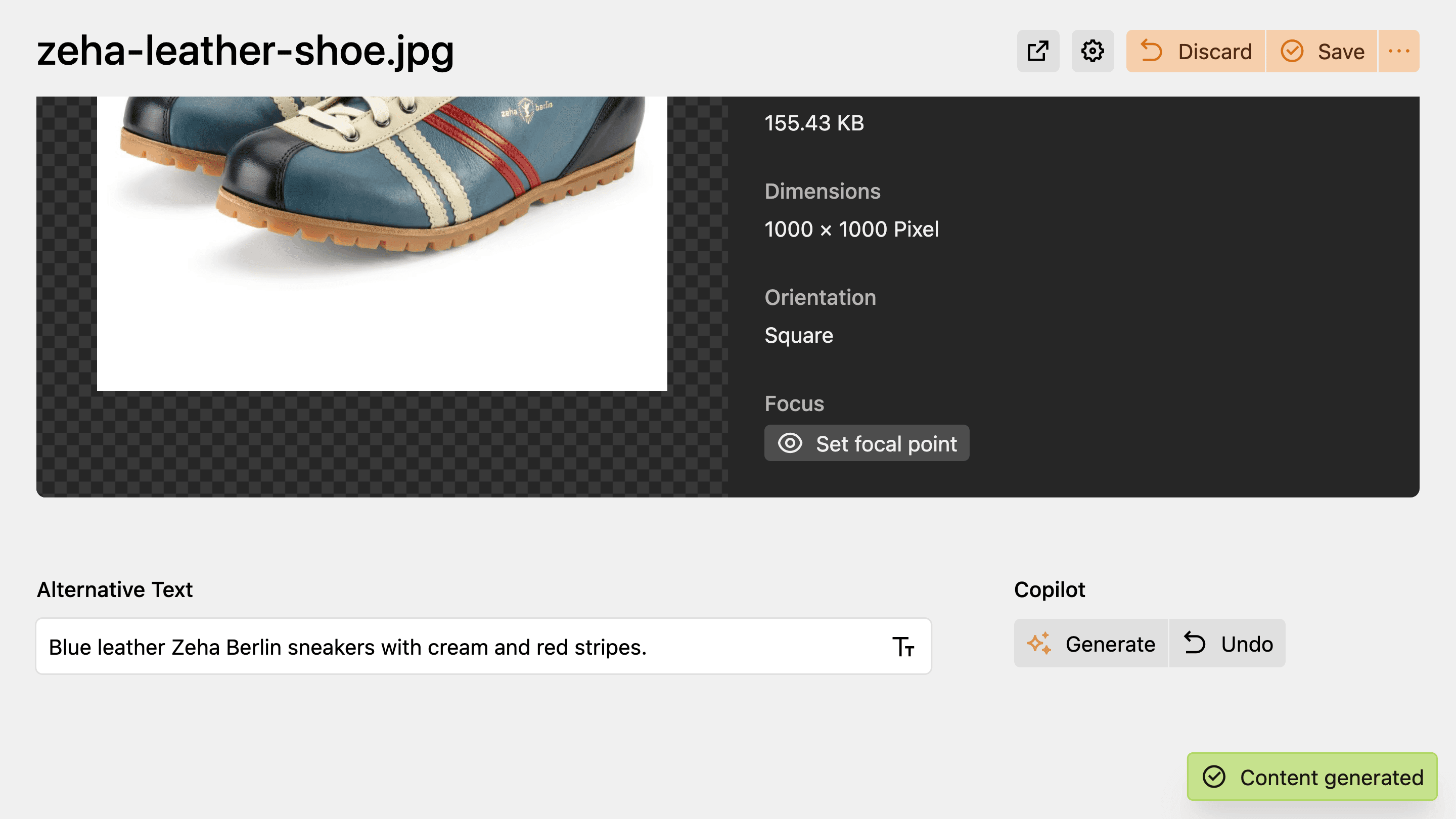
Only images are attached this way – gif, jpeg, png, and webp. On a file of any other type, including PDF, the section shows a note that the type is not supported as context. Unlike files: true, auto does not add the file picker, so the user cannot attach a different file instead.
open Boolean
Set the initial state of the prompt input accordion in sections.
Default: false (closed)
sections:
  copilot:
    type: copilot
    field: content
    open: true
storage Boolean
Enable or disable local storage for saving user prompts in the browser. When enabled, prompts are remembered between sessions.
Default: true
sections:
  copilot:
    type: copilot
    field: content
    storage: false
size String
Controls the size of the Generate, Stop, and Undo buttons in the Copilot section.
Default: md
Options: xs, sm, md, lg
sections:
  copilot:
    type: copilot
    field: content
    size: lg
help String
Provide additional help text or instructions for the Copilot section.
sections:
  copilot:
    type: copilot
    field: blocks
    help: |
      Example: Write a summary of this page and include the contents of {blocks}.