---
title: "Installation"
description: "Add in-Panel SEO analysis with a view button or section, configure keyphrase fields, and run your first audit in minutes."
canonical_url: "https://kirby.tools/docs/seo-audit/getting-started/installation"
---
# Installation
> Add in-Panel SEO analysis with a view button or section, configure keyphrase fields, and run your first audit in minutes.
## Step 1: Install the Plugin
Although it is a commercial plugin, you can download and test it in your local environment before purchasing.
The recommended way to install the plugin:
```bash
composer require johannschopplich/kirby-seo-audit
```
Download the
or head over to the [releases page](https://github.com/kirby-tools/kirby-seo-audit/releases) to see all versions. Extract the ZIP file to your `site/plugins` folder.
## Step 2: Choose Your Workflow
Kirby SEO Audit offers two ways to add SEO analysis to the Panel. Both run the same analysis and can be used together – the section additionally takes a `label`, remembers its last result through `persisted`, and resolves Kirby queries in `keyphrase` and `synonyms`.
Add an SEO analysis button to the Panel **toolbar** that opens results in a dialog.
```yaml [pages/default.yml]
buttons:
- seo-audit # Choose position
- open # `buttons` replaces Kirby's
- preview # defaults, so list them all
- "-"
- settings
- languages
- status
```
Alternative display with analysis results inline within the page content.
```yaml
seoAudit:
type: seo-audit
```
## Step 3: Configure Keyphrase Fields (Optional)
SEO assessments that analyze how the keyphrase is used, such as Introduction Keyword, Meta Description Keyword, or Function Words, will only run with a defined keyphrase. You can define blueprint fields for the keyword and its synonyms to be analyzed with your page. These fields can be used by both the view button and section:
```yaml [pages/default.yml]
# Configure the view button to use keyphrase fields
buttons:
seo-audit:
keyphraseField: metaKeyphrase
synonymsField: metaSynonyms
open: true
preview: true
settings: true
languages: true
status: true
sections:
# Define the keyphrase fields
content:
type: fields
fields:
metaKeyphrase:
label: SEO Keyphrase
type: text
help: The main keyword you want this page to rank for
metaSynonyms:
label: Keyphrase Synonyms
type: tags
help: Alternative keywords and variations
# Configure the section to use the same fields
seoAudit:
type: seo-audit
keyphraseField: metaKeyphrase
synonymsField: metaSynonyms
```
Do you want to customize the analysis? Check out the configuration guide to learn about all available configuration properties and assessment customization.
## Step 4: Analyze Your Content
Open the Panel and navigate to the page that you want to analyze. You can start the SEO audit in two ways:
- **Using the View Button**: Click the **SEO Audit** button and the analysis results will open in a dialog.
- **Using the Section**: Click the **Analyze** button in the section. The results will be displayed directly in the section.
When using the Panel view button, the analysis results will be displayed in a dialog:
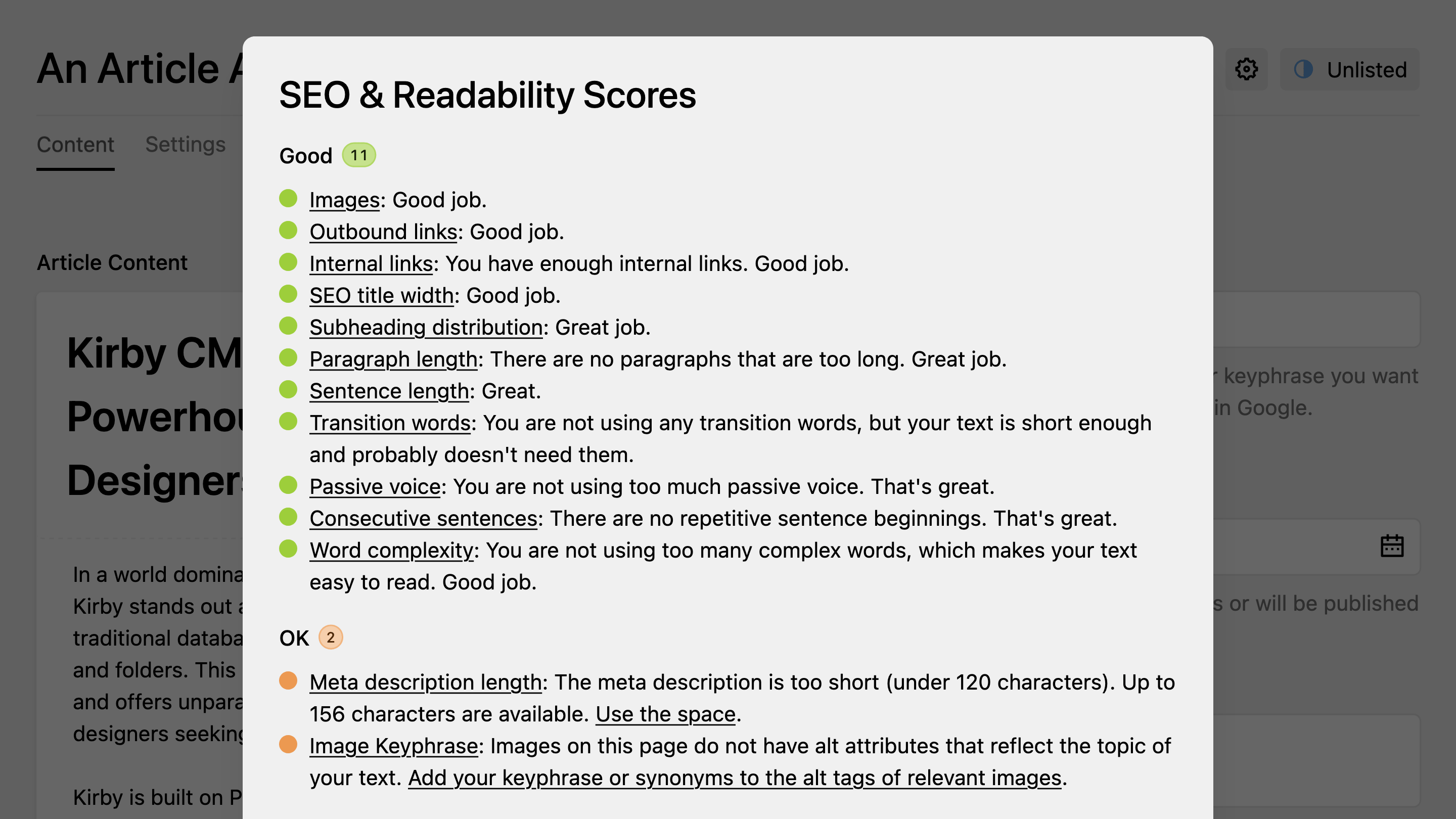
Both methods perform the same analysis process:
1. Fetch the HTML content from your [page's preview URL](/docs/seo-audit/guide/audit-url).
2. Analyze the content using 28 SEO and readability assessments.
3. Present results in four clear categories (Good, OK, Bad, Feedback) with actionable recommendations for improvement.
The analysis considers your defined keyphrase and synonyms.
## Step 5: Buy a License
You can test the plugin locally. However, you need to purchase a license to use the plugin in production environments.
Visit the [buy page](/seo-audit/buy) and purchase a license. The easiest way to activate your license is to go to the system view in the Kirby Panel and click on **Activate now**:
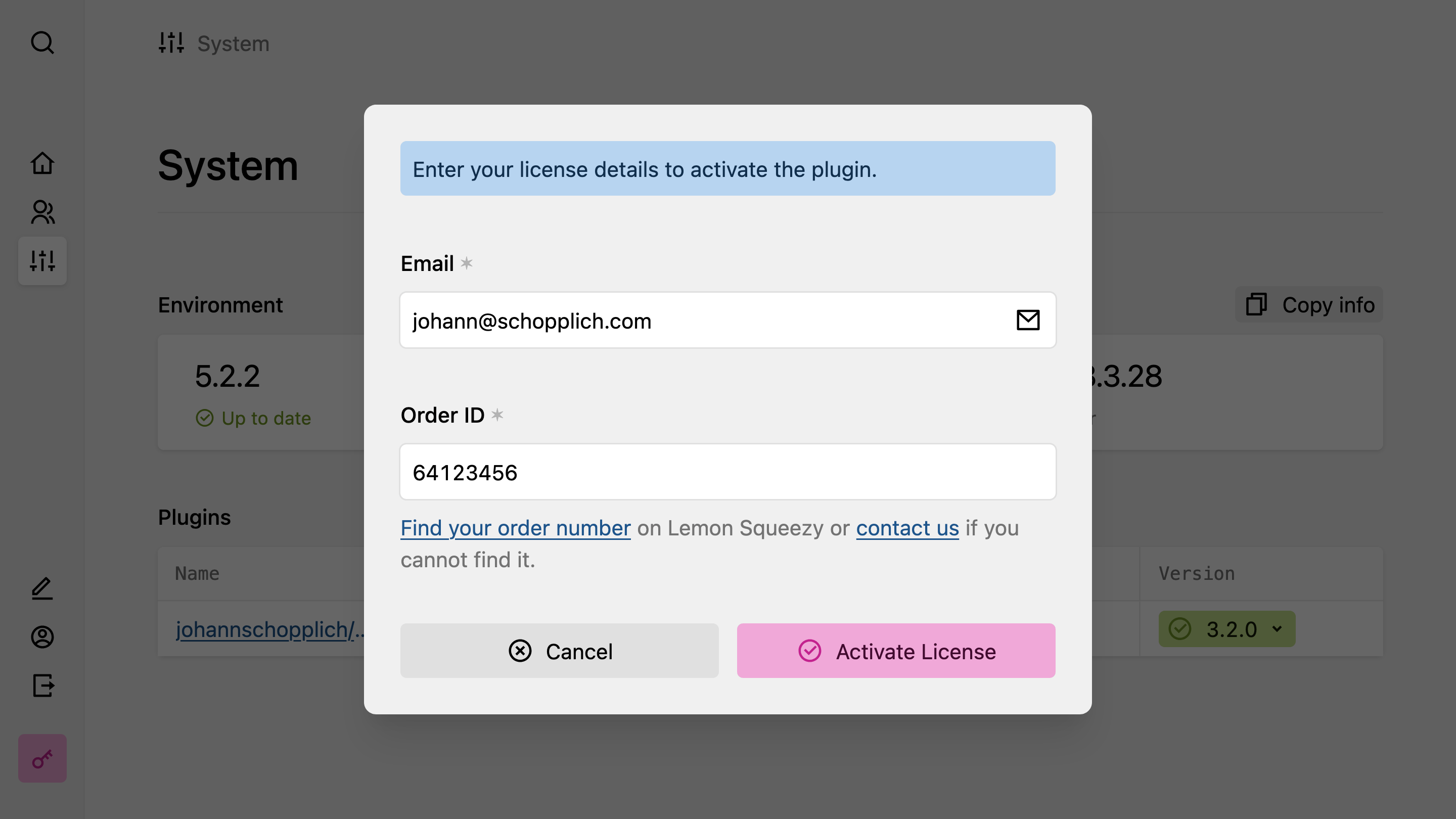
Enter the email you used for the purchase and your license key, then hit the submit button. You will find your license key in your order confirmation email or at [hub.kirby.tools](https://hub.kirby.tools). Done! Thanks for supporting our work. Once you activate your license, the license activation buttons will disappear.
Your license key will be stored automatically in `/site/config/.kirby-tools-licenses`. This file is created on first activation. Make sure to add it to your `.gitignore` to keep your license key private.
---
Every page of this site as Markdown: