---
title: "Getting Started"
description: "See real-time content changes in a Panel iframe, navigate between pages without leaving the editor, and customize the preview layout."
canonical_url: "https://kirby.tools/docs/live-preview"
---
# Getting Started
> See real-time content changes in a Panel iframe, navigate between pages without leaving the editor, and customize the preview layout.
Kirby Live Preview is a plugin for [Kirby CMS](https://getkirby.com) that adds a Panel section to render any page in an iframe – content updates as editors type. Navigate by clicking links inside the preview – the matching Panel view opens instead of the linked page. Pin the section sticky to keep it visible while editing blocks and other fields side-by-side.
## Step 1: Install the Plugin
Although it is a commercial plugin, you can download and test it in your local environment before purchasing.
The recommended way to install the plugin:
```bash
composer require johannschopplich/kirby-live-preview
```
Download the
or head over to the [releases page](https://github.com/kirby-tools/kirby-live-preview/releases) to see all versions. Extract the ZIP file to your `site/plugins` folder.
## Step 2: Blueprint Setup
Select a site or page blueprint to which you want to add the Live Preview section. Add the following section configuration to the blueprint file:
```yaml [pages/default.yml]
sections:
livePreview:
type: preview
```
Now, open the Panel and navigate to a page that uses the blueprint. You should see a new section called **Live Preview** with a list of clickable buttons:
The three device buttons constrain the preview to a mobile (390px), tablet (768px), or desktop (1440px) viewport. Next to them, open the current preview in a new browser tab, or rerender it manually.
## Step 3: Customize the Live Preview
Fit the Live Preview section to your blueprint layout and customize it as needed. It can be part of any column and can be sticky. The latter is useful for previewing content changes side-by-side with blocks or other fields:
```yaml [pages/default.yml]
columns:
- width: 2/3
fields:
blocks:
type: blocks
- width: 1/3
# Make the preview sticky
sticky: true
sections:
livePreview:
type: preview
```
Now you see a rendering of the page content. It updates as you type:

Try navigating through the preview – if you click on a site link, such as in the header, the corresponding Panel page will open instead of the link in the preview.
Press
(macOS) /
(Windows/Linux) inside the preview to save the current page without leaving it.
For more configuration properties, see the [Configuration](/docs/live-preview/configuration) guide.
## Step 4: Buy a License
You can test the plugin locally. However, you need to purchase a license to use the plugin in production environments.
Visit the [buy page](/live-preview/buy) and purchase a license. The easiest way to activate your license is to go to the system view in the Kirby Panel and click on **Activate now**:
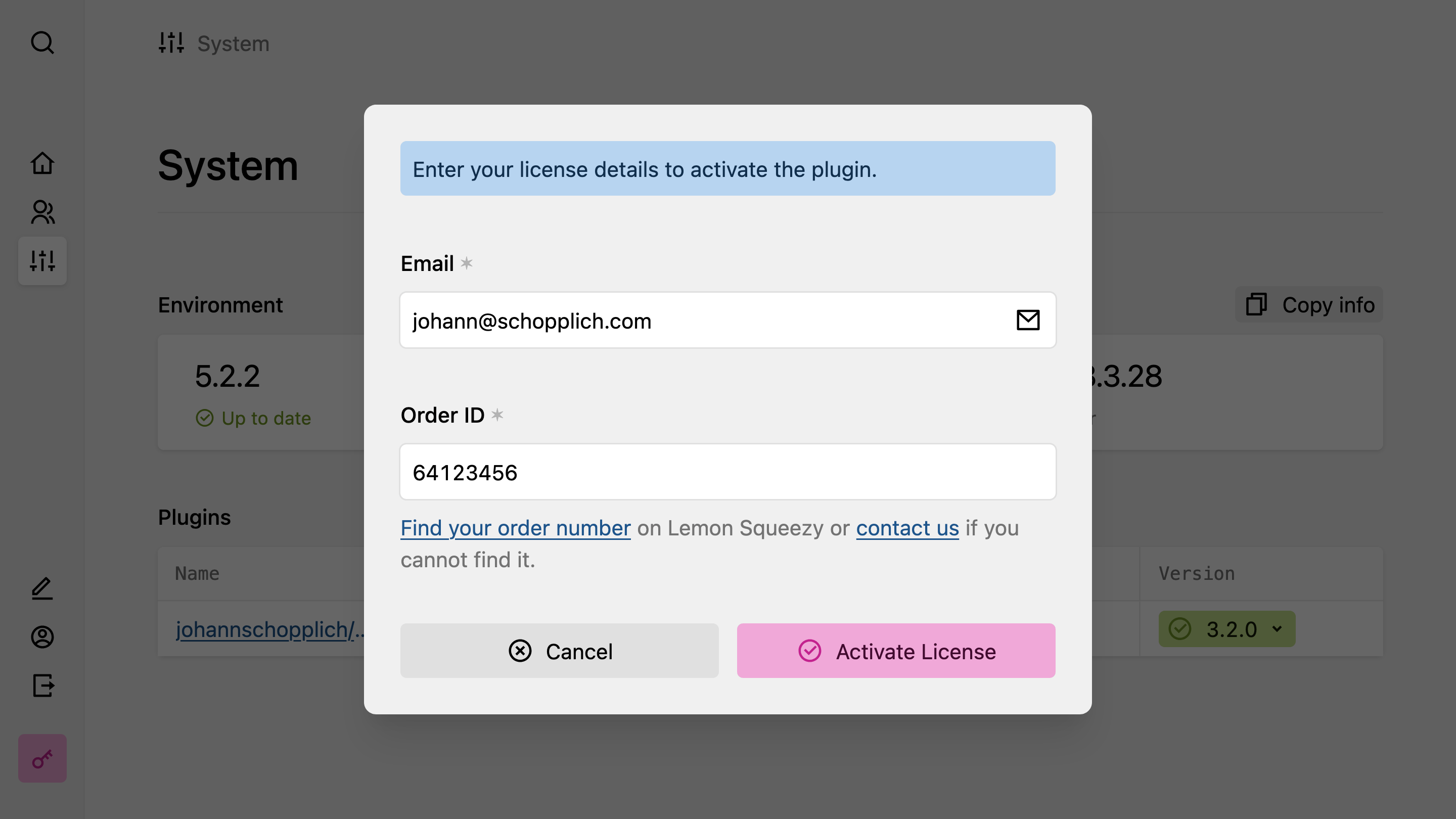
Enter the email you used for the purchase and your license key, then hit the submit button. You will find your license key in your order confirmation email or at [hub.kirby.tools](https://hub.kirby.tools). Done! Thanks for supporting our work. Once you activate your license, the license activation buttons will disappear.
Your license key will be stored automatically in `/site/config/.kirby-tools-licenses`. This file is created on first activation. Make sure to add it to your `.gitignore` to keep your license key private.
Running into issues? Check the Troubleshooting page for common problems and solutions.
---
Every page of this site as Markdown: