---
title: "View Button"
description: "Generate content for multiple fields at once from a dedicated prompt dialog, with field targeting and response streaming."
canonical_url: "https://kirby.tools/docs/copilot/usage/view-button"
---
# View Button
> Generate content for multiple fields at once from a dedicated prompt dialog, with field targeting and response streaming.
Lives in any Panel view (site, page, file, user) alongside the default preview and settings buttons. Open it from any toolbar – the dialog scopes to the current model's blueprint.
## Setting Up the View Button
To add the `copilot` button to a Panel view, set the `buttons` option in the corresponding blueprint:
```yaml [site.yml]
buttons:
- copilot # Re-order the button as needed
- open
- preview
- languages
```
```yaml [pages/default.yml]
buttons:
- copilot # Re-order the button as needed
- open
- preview
- "-" # Kirby's default divider
- settings
- languages
- status
```
```yaml [files/default.yml]
buttons:
- copilot # Re-order the button as needed
- open
- settings
- languages
```
`buttons` replaces Kirby's defaults instead of extending them. Every button you want to keep has to be listed, which is why the examples above repeat the full default set for each view: `open`, `preview` and `languages` for the site, plus `settings` and `status` for pages, and `open`, `settings`, `languages` for files. Anything you leave out disappears from the Panel.
Placing `copilot` among the defaults decides where it appears in the toolbar. It will look something like this:
## Using the View Button
Clicking the button opens the Copilot prompt dialog. By default, **no fields are selected** – you need to select the fields you want to generate content for. This is especially useful for multi-field content generation.
Finally, enter your prompt and click the **Generate** button to start the content generation process.
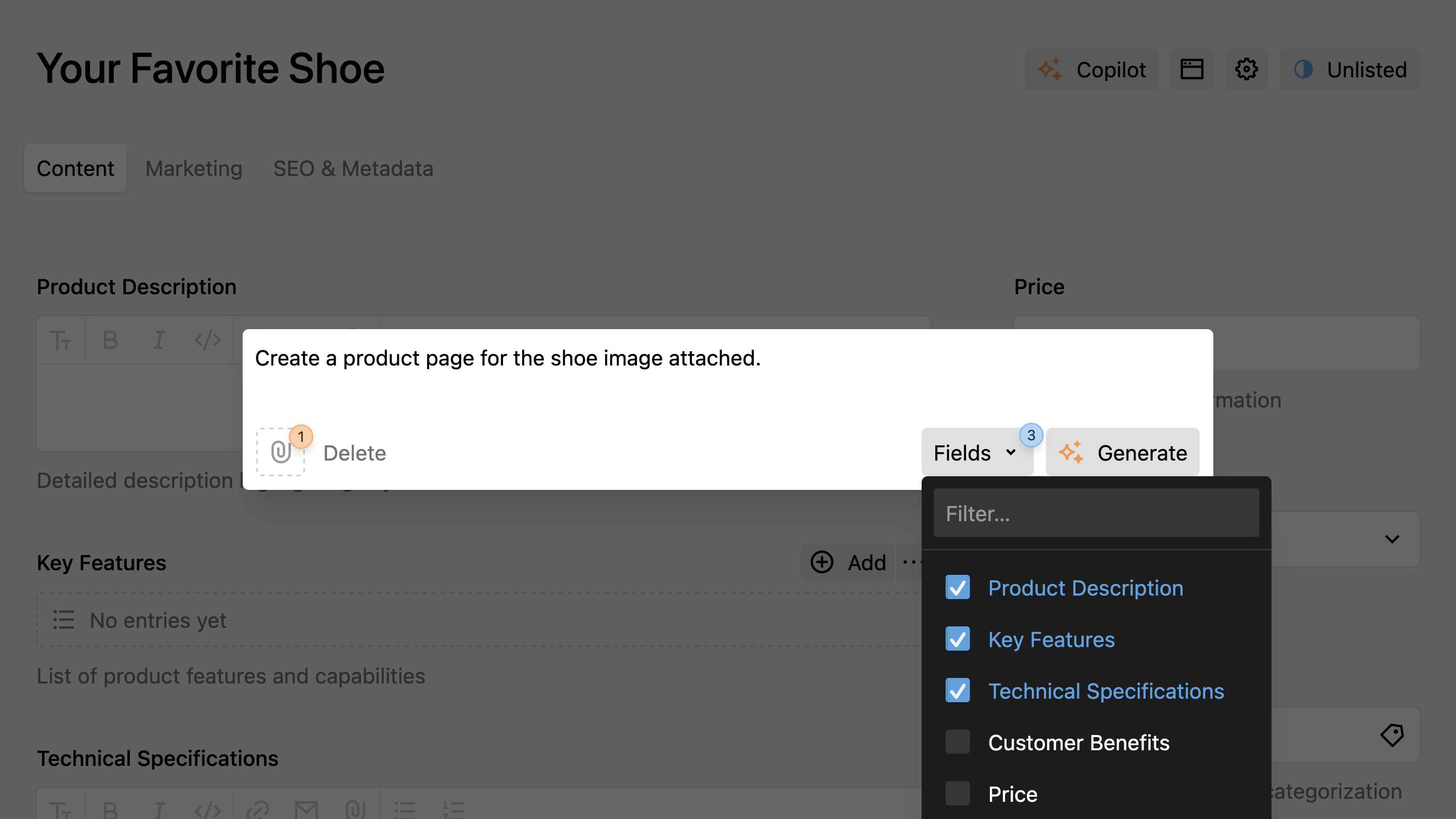
Generated `blocks` and `layout` values are added after what the field already holds. Every other field type is overwritten, so a text field you select loses its current value.
See the [Field Placeholders](/docs/copilot/prompt-dialog/placeholders) guide to learn how to reference other fields as context in your prompts.
### Cancel Generation
To stop generation mid-stream:
- Press
on your keyboard, or
- Hover over the generate button and click the cancel icon.
### Prompt History
Your prompts are saved in the browser's local storage (up to 50 entries per site). Navigate through history with the arrow keys when the prompt dialog is open.
See the **Quick Reference** for all keyboard shortcuts.
## Button Configuration
For the full property reference (`label`, `userPrompt`, `systemPrompt`, `icon`, `theme`, `logLevel`) and configuration precedence, see [View Button & Field Configuration](/docs/copilot/configuration/local#available-properties).
---
Every page of this site as Markdown: