---
title: "Copilot Section"
description: "Single-field generation with locked prompts and auto file context – ideal for image alt text, captions, and editorial workflows."
canonical_url: "https://kirby.tools/docs/copilot/usage/section"
---
# Copilot Section
> Single-field generation with locked prompts and auto file context – ideal for image alt text, captions, and editorial workflows.
The Copilot section provides a dedicated interface for generating content for a specific field. Unlike the [Panel view button](/docs/copilot/usage/view-button) which targets multiple fields at once, the section focuses on a single field with additional features: persistent prompts saved between sessions, immutable prompts for locked workflows, and automatic file context on file pages.
**Perfect for File Pages**: Use `files: auto` to automatically include the current image or PDF as context – ideal for generating alt text, captions, or descriptions.
## Basic Setup
Add a Copilot section to any blueprint by specifying the target field:
```yaml [pages/default.yml]
sections:
content:
type: fields
fields:
blocks:
label: Content
type: blocks
copilot:
type: copilot
field: blocks
```
The Panel will display a collapsible Copilot interface below your fields:
Click on the arrow to expand the accordion, start entering your prompt, and generate content for the specified field by clicking the **Generate** button:
## Section Features
### Prompt Storage
By default, prompts are saved to local storage and remembered between sessions. The storage is keyed by the Panel view and the target field, so the same section keeps its prompt per page – and two sections writing to the same field on the same page share one entry.
To disable storage:
```yaml
sections:
copilot:
type: copilot
field: blocks
storage: false
```
### Reset Prompt
If you've modified a predefined prompt, click the **Reset** button (circular arrow icon) to restore the original.
### Undo Generation
After generating content, an **Undo** button appears to revert to the previous content.
### Dynamic Prompts With KQL
A [Kirby query](/docs/copilot/configuration/local#userprompt) in `userPrompt` or `systemPrompt` lets content editors define their own prompt in a dedicated field:
```yaml
sections:
copilot:
type: copilot
field: blocks
userPrompt: "{{ page.customPrompt.value }}"
```
## Configuration Reference
Sections support shared properties (`label`, `userPrompt`, `systemPrompt`, `icon`, `theme`, `logLevel`) documented in the [View Button & Field Configuration](/docs/copilot/configuration/local#available-properties) page, plus the following section-specific properties:
See the **Quick Reference** for all keyboard shortcuts.
### `field`
**Required.** Specifies which field to generate content for. This should be the name of a field defined in the same blueprint.
```yaml
sections:
copilot:
type: copilot
field: blocks
```
### `editable`
Control whether users can edit the prompt. Setting it to `false` is useful if a specific `userPrompt` should always be used without modifications.
**Default:** `true`
```yaml
sections:
copilot:
type: copilot
field: content
userPrompt: Write a technical guide about "{title}". Include an introduction, step-by-step instructions, and a summary.
editable: false
```
### `files`
Context is key to relevant AI-generated content. This property enables file attachments for providing context to the AI.
**Default:** `true`
**Options:** `true`, `false`, `"auto"`
To disable file attachments and prevent users from adding files, set the `files` property to `false`:
```yaml
sections:
copilot:
type: copilot
field: blocks
files: false
```
On a Kirby file page, setting `files: auto` pre-selects the **current file as context** for the user prompt. This is useful for generating metadata like alternative text based on the image that has already been uploaded to the Panel:
```yaml [files/image.yml]
sections:
copilot:
type: copilot
field: alt
# Use the uploaded file as context
files: auto
# Optional: Provide a predefined user prompt
userPrompt: Describe this image for alternative text. Include key features, colors, and context. Max 125 characters.
# Optional: Disable the editing of the user prompt
editable: false
```
The section above will use the current file of a Kirby file model as context for the user prompt:
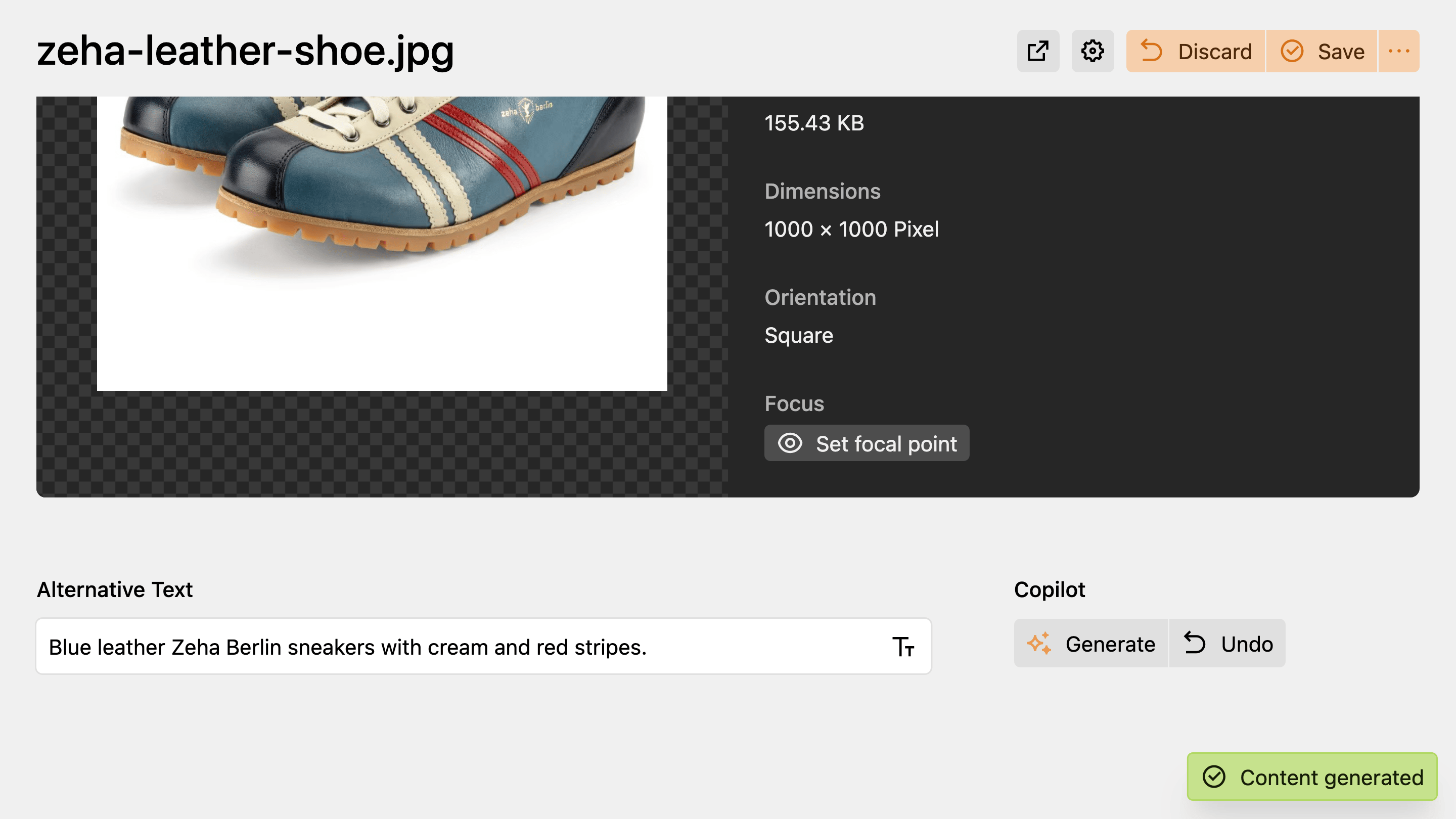
Only images are attached this way – `gif`, `jpeg`, `png` and `webp`. On a file of any other type, including PDF, the section shows a note that the type is not supported as context. Unlike `files: true`, `auto` does not add the file picker, so the user cannot attach a different file instead.
Learn more about working with files on the dedicated [Files as Context](/docs/copilot/prompt-dialog/files) page.
### `open`
Set the initial state of the prompt input accordion in sections.
**Default:** `false` (closed)
```yaml
sections:
copilot:
type: copilot
field: content
open: true
```
### `storage`
Enable or disable local storage for saving user prompts in the browser. When enabled, prompts are remembered between sessions.
**Default:** `true`
```yaml
sections:
copilot:
type: copilot
field: content
storage: false
```
### `size`
Controls the size of the **Generate**, **Stop**, and **Undo** buttons in the Copilot section.
**Default:** `md`
**Options:** `xs`, `sm`, `md`, `lg`
```yaml
sections:
copilot:
type: copilot
field: content
size: lg
```
### `help`
Provide additional help text or instructions for the Copilot section.
```yaml
sections:
copilot:
type: copilot
field: blocks
help: |
Example: Write a summary of this page and include the contents of {blocks}.
```
---
Every page of this site as Markdown: